
[vc_row full_width=”stretch_row” css_animation=”fadeIn” overflow=”default” css=”.vc_custom_1622117906630{padding-top: 70px !important;padding-bottom: 70px !important;background: #f4f4f4 url(https://dynamicmediamusic.com/wp-content/uploads/2020/01/grocerystore-bg.jpg?id=10032) !important;}”][vc_column][vcj_heading style=”style1″ weight=”300″ size=”default” animation_speed=”2″ animation_delay=”0″]
Get More From Your SiriusXM Player New Firmware Upgrade
[/vcj_heading][vcj_empty_space height=”30px”][vc_column_text]Effective Tuesday, August 17, 2021 – SiriusXM has released a firmware upgrade to add overhead messaging to Grace Digital player models SXBR2, SXBR3, and BREW/BREO. The firmware update will automatically install on most players. [/vc_column_text][/vc_column][/vc_row][vc_row full_width=”stretch_row” css_animation=”fadeIn” overflow=”default” css=”.vc_custom_1628865774310{padding-top: 0px !important;padding-bottom: 0px !important;background-color: #ff4040 !important;}”][vc_column overflow=”default” css=”.vc_custom_1628866538813{margin-top: 10px !important;margin-bottom: 0px !important;padding-top: 10px !important;padding-bottom: 10px !important;}”][vc_column_text css=”.vc_custom_1628866842622{margin-bottom: 10px !important;padding-top: 0px !important;padding-bottom: 0px !important;}”]
IMPORTANT FIRMWARE UPGRADE NOTICE
[/vc_column_text][/vc_column][/vc_row][vc_row full_width=”stretch_row” css_animation=”none” faster_parallax=”standard” overflow=”default” css=”.vc_custom_1629207249135{padding-top: 60px !important;padding-bottom: 60px !important;}” padding_tablet=”60px 0px 0px 0px”][vc_column css_animation=”none”][vcj_heading_simple content2=”Firmware Upgrade Release Notes” alignment=”left” weight=”400″ italic=”” size=”custom” desktop_size=”40px” responsive_size=”30px” animation_speed=”2″ animation_delay=”0″][vcj_empty_space height=”10px”][vcj_heading_simple content2=”SXBR2 v147.46 | SXBR3 v170.68 | BREW/BREO v150.61″ alignment=”left” weight=”400″ italic=”” size=”custom” desktop_size=”30px” responsive_size=”20px” animation_speed=”2″ animation_delay=”0″][vcj_empty_space height=”40px”][vc_row_inner overflow=”default” padding_tablet=”0px 30px 0px 30px”][vc_column_inner width=”1/2″][vcj_heading_simple content2=”Overhead Messaging” heading=”h3″ alignment=”left” weight=”200″ italic=”” size=”custom” desktop_size=”33px” responsive_size=”30px” animation_speed=”2″ animation_delay=”0″][vcj_empty_space height=”20px”][vc_column_text]This firmware upgrade adds the ability for your SXBR2, SXBR3, and BREW/BREO players to use overhead messaging. Overhead messaging is an advanced feature that allows you to insert custom messages into the music stream that play for your customers while they are in your store. To add overhead messaging service to your current subscription, please contact your Dynamic Media account executive at 586-978-4214 option 1.[/vc_column_text][/vc_column_inner][vc_column_inner width=”1/2″][vcj_heading_simple content2=”SiriusXM Scheduling Portal” heading=”h3″ alignment=”left” weight=”200″ italic=”” size=”custom” desktop_size=”33px” responsive_size=”30px” animation_speed=”2″ animation_delay=”0″][vcj_empty_space height=”20px”][vc_column_text]This firmware upgrade improves the communication between the player and SiriusXM Scheduling Portal at www.siriusxm4biz.com. Users with higher-security networks will need to whitelist the following URL to maintain communication between the player and the scheduling portal. Players that cannot reach the URL below will lose connection with the portal and will no longer receive scheduling updates.
https://sxbr3api.gracedigital.com/radio/schedule[/vc_column_text][/vc_column_inner][/vc_row_inner][/vc_column][/vc_row][vc_row full_width=”stretch_row” css_animation=”none” faster_parallax=”standard” overflow=”default” css=”.vc_custom_1629207253616{padding-top: 60px !important;padding-bottom: 60px !important;background-color: #ffffff !important;}” padding_tablet=”60px 0px 0px 0px”][vc_column css_animation=”none”][vcj_heading_simple content2=”Firmware Upgrade Instructions and Support Information” alignment=”left” weight=”400″ italic=”” size=”custom” desktop_size=”40px” responsive_size=”30px” animation_speed=”2″ animation_delay=”0″][vcj_empty_space height=”40px”][vcj_heading_simple content2=”Step 1: Confirm Your Firmware Level” alignment=”left” weight=”400″ italic=”” size=”custom” desktop_size=”40px” responsive_size=”30px” animation_speed=”2″ animation_delay=”0″][vcj_empty_space height=”20px”][vc_column_text]The firmware upgrade will automatically install on most players. Locate your player in the table below and check to see if your player is at the latest firmware level.
| Player | Your player is updated if you are on this firmware version | Where to view firmware level | Steps to view firmware level |
| SXBR2 | 147.46 | The player’s screen | Home > Settings > Radio Info |
| SXBR3 | 170.68 | The player’s screen | Home > Settings > Radio Info |
| BREW/BREO | 150.61 | From the mobile device controller app or network-connected PC | Home > Settings > Radio Info |
[/vc_column_text][vc_toggle title=”What if my player did not automatically update?”]There are some players that will require a manual update. To perform a manual update, please follow the steps below.
Grace Digital SXBR2

- Press the Home button
- Turn the Tune Knob to highlight Settings and press the Tune Knob to select
- Turn the Tune Knob to highlight Firmware Update and press the Tune Knob to select
- Turn the Tune Knob to highlight Install Update and press the Tune Knob to select
- The new software will be applied to your player.
- Do not turn off the player during the update, or disconnect the player from power. Doing so may permanently disable the player.
- When the update is complete, the player will restart to complete the update and display, “Please press the Power button.”
Grace Digital SXBR3
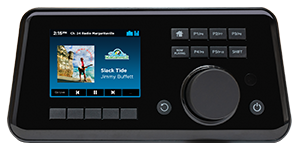
- Press the Home button
- Turn the Tune Knob to highlight Settings and press the Tune Knob to select
- Turn the Tune Knob to highlight Firmware Update and press the Tune Knob to select
- Turn the Tune Knob to highlight Install Update and press the Tune Knob to select
- The new software will be applied to your player.
- Do not turn off the player during the update, or disconnect the player from power. Doing so may permanently disable the player.
- When the update is complete, the player will restart to complete the update and display, “Please press the Power button.”
SiriusXM BREW/BREO
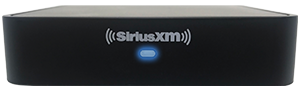
- Access the BREW/BREO from the SiriusXM Controller mobile app or your computer.
- Enter your administrative password (the default password is 0000)
- (Tap or click) Settings > Firmware Update > Update
- Allow the software update to complete
- Do not remove power from the Radio until the software update has completed.
- During the update the light on the front of the Radio will flash red and the Radio will be unresponsive until the update is completed.
- When the light on the front of the Radio shows a solid blue light, the update is completed.
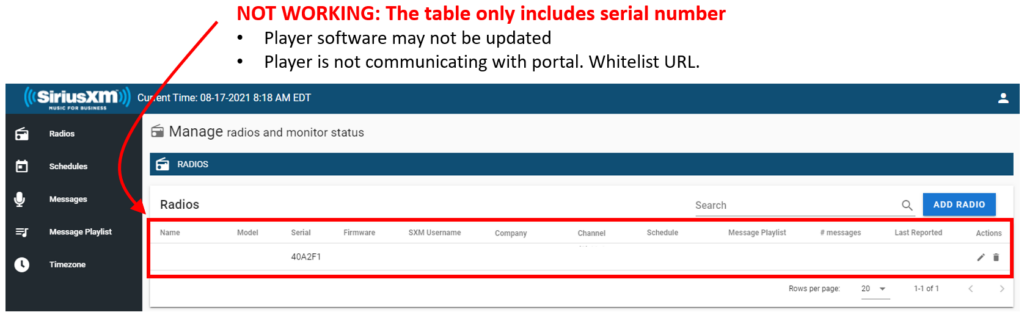
[/vc_toggle][vc_toggle title=”Can I tell if a player is updated from the Scheduling Portal?”]Yes, you can tell if a player has been updated by logging into the scheduling portal. This may be useful for administrators who are not at the same physical location as the player.
- Log into the scheduling portal at www.siriusxm4biz.com
- Click to “Radios” in the side navigation
If the table contains data in most columns, the player is update and working properly.

If the table only displays serial number, the player is either not upgraded or is not communicating with the Scheduling Portal. Check your firmware level and whitelist the URL as noted below in “Step 2.”
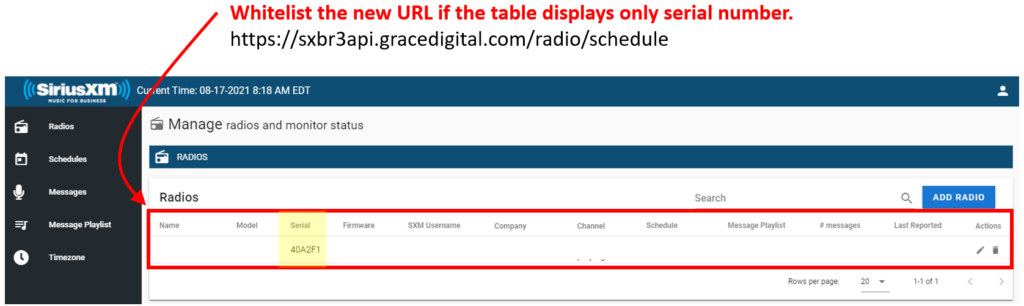
 [/vc_toggle][vc_row_inner overflow=”default” padding_tablet=”0px 30px 0px 30px” css=”.vc_custom_1628866342315{padding-top: 60px !important;}”][vc_column_inner][vcj_heading_simple content2=”Step 2: Whitelist URL” alignment=”left” weight=”400″ italic=”” size=”custom” desktop_size=”40px” responsive_size=”30px” animation_speed=”2″ animation_delay=”0″][vcj_empty_space height=”20px”][vc_column_text]Some users with higher security networks will need to whitelist a new URL that the player uses to communicate with the portal.
https://sxbr3api.gracedigital.com/radio/schedule
You will need to whitelist this URL
IF
Your player is on the latest firmware version
- SXBR2 147.46
- SXBR3 170.68
- BREW/BREO 150.61
AND
- Your player is not responding to schedule changes, or
- The “Radios” table in the Scheduling Portal displays only serial number and does not have data in any other columns.
Additional Resources:
[/vc_column_text][/vc_column_inner][/vc_row_inner][/vc_column][/vc_row][vc_row full_width=”stretch_row” gap=”30″ css_animation=”none” faster_parallax=”standard” overflow=”default” css=”.vc_custom_1629207832650{padding-top: 30px !important;padding-bottom: 25px !important;}” padding_tablet=”60px 0px 0px 0px”][vc_column css_animation=”none”][vcj_heading_simple content2=”FAQ and Troubleshooting” alignment=”left” weight=”200″ italic=”” size=”custom” desktop_size=”40px” responsive_size=”30px” animation_speed=”2″ animation_delay=”0″][vcj_empty_space height=”20px”][vc_column_text el_class=”white”][hrf_faqs category=’firmware’][/vc_column_text][/vc_column][/vc_row][vc_row full_width=”stretch_row” background_position=”center bottom” overflow=”default” css=”.vc_custom_1576785814670{padding-top: 70px !important;padding-bottom: 130px !important;background: #f8f8f8 url(https://dynamicmediamusic.com/wp-content/uploads/2019/12/patternbg-1.png?id=8945) !important;background-position: 0 0 !important;background-repeat: repeat !important;}” el_id=”contact”][vc_column max_width=”590px” css=”.vc_custom_1534258949794{background-position: center !important;background-repeat: no-repeat !important;background-size: contain !important;}”][vcj_heading style=”style1″ weight=”200″ size=”xl” animation_speed=”2″ animation_delay=”0″]
Music experts are standing by!
[/vcj_heading][vcj_empty_space height=”15px”][vcj_heading_simple content2=”If you need assistance, fill out this form and we’ll get back to you within one business day.” weight=”400″ italic=”” size=”custom” desktop_size=”18px” animation_speed=”2″ animation_delay=”0″][vcj_empty_space height=”45px”]